1
2
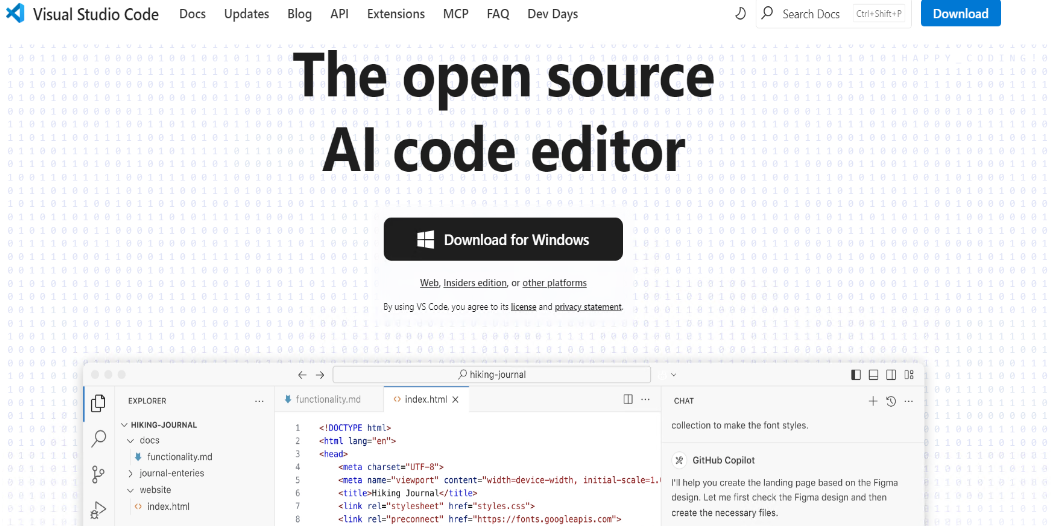
Click 'Download for Windows'
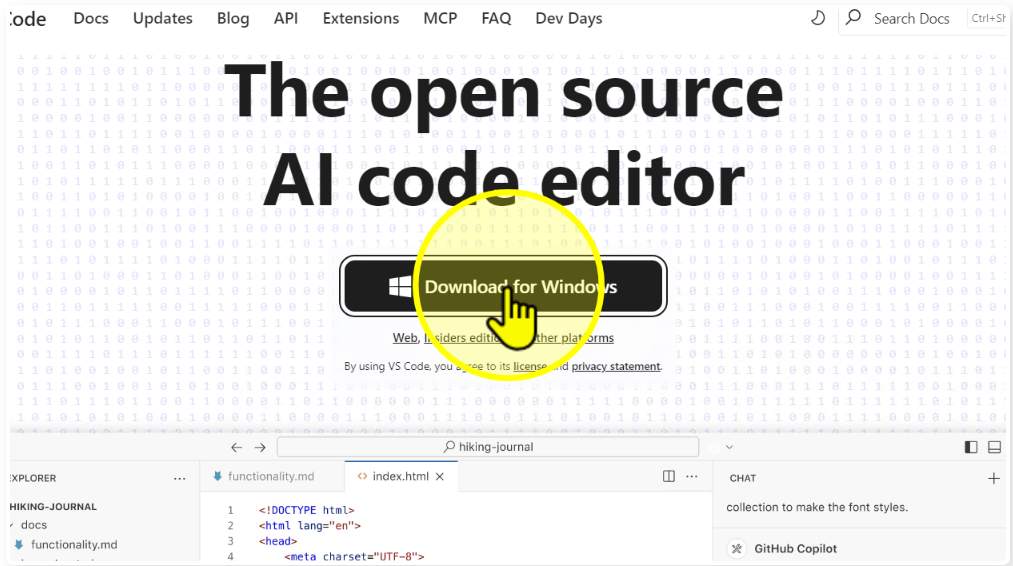
Step 2
3
Open the downloaded file
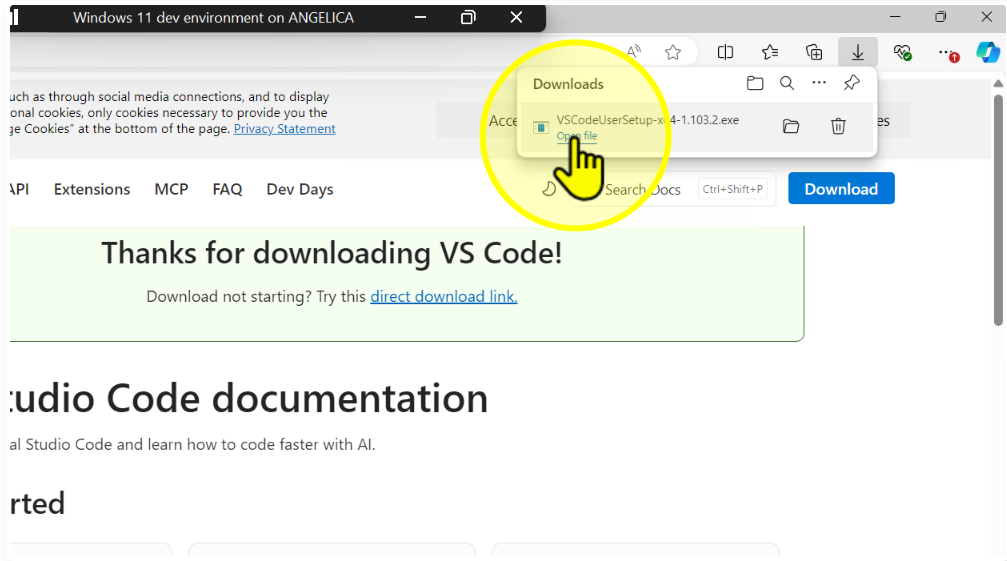
Step 3
4
Accept the license agreement
Select I accept the agreement and click Next.
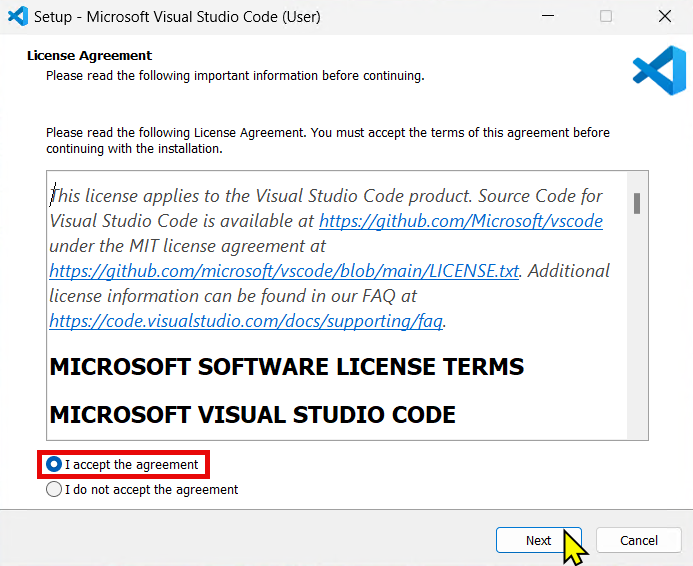
Step 4
5
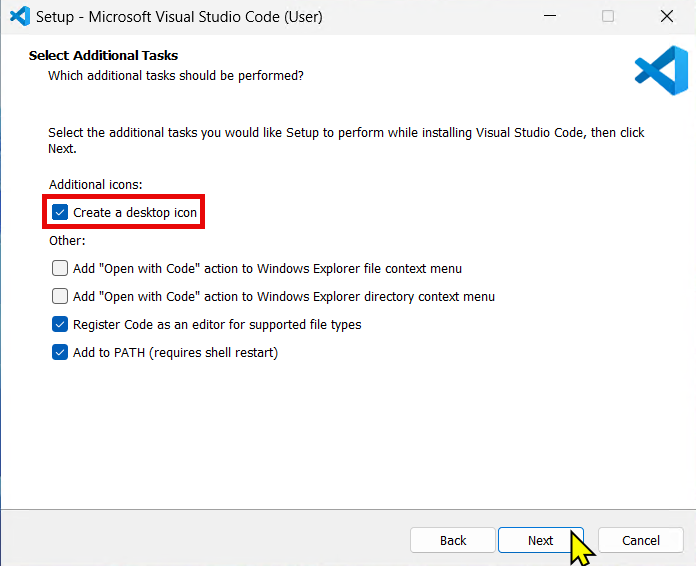
Select additional tasks
Check Create a desktop icon, then click Next.
Step 5
6
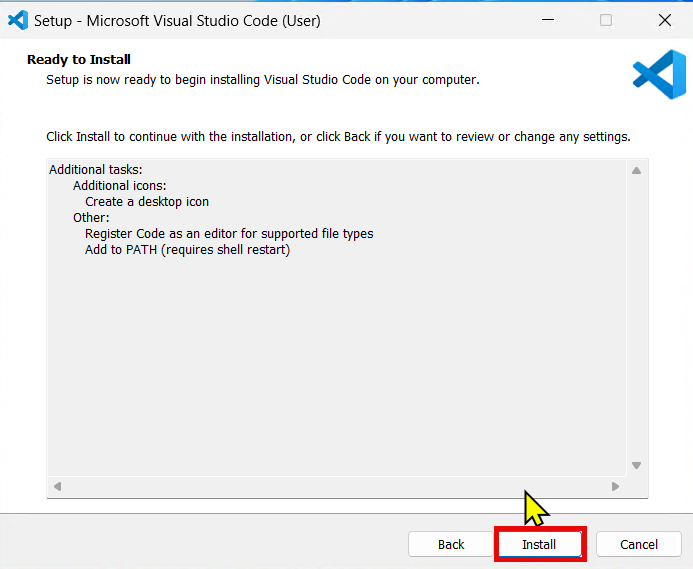
Install VS Code
Click the Install button.
Step 6
7
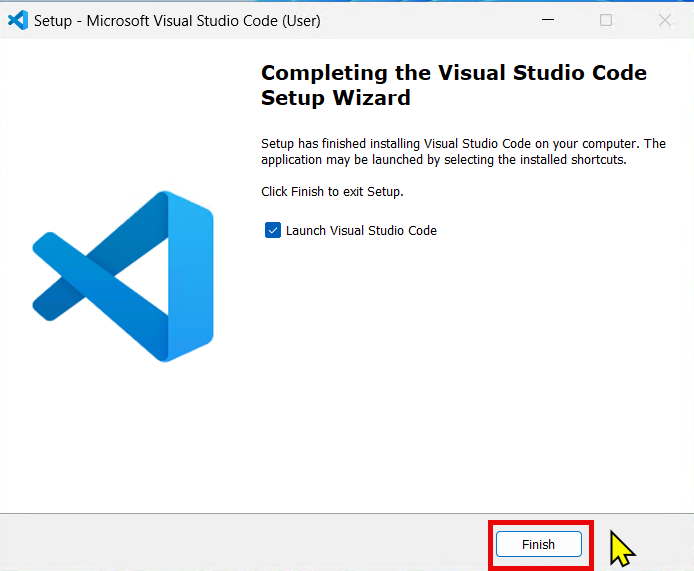
Finish setup
Launch Visual Studio Code checked and click Finish.
Step 7
8
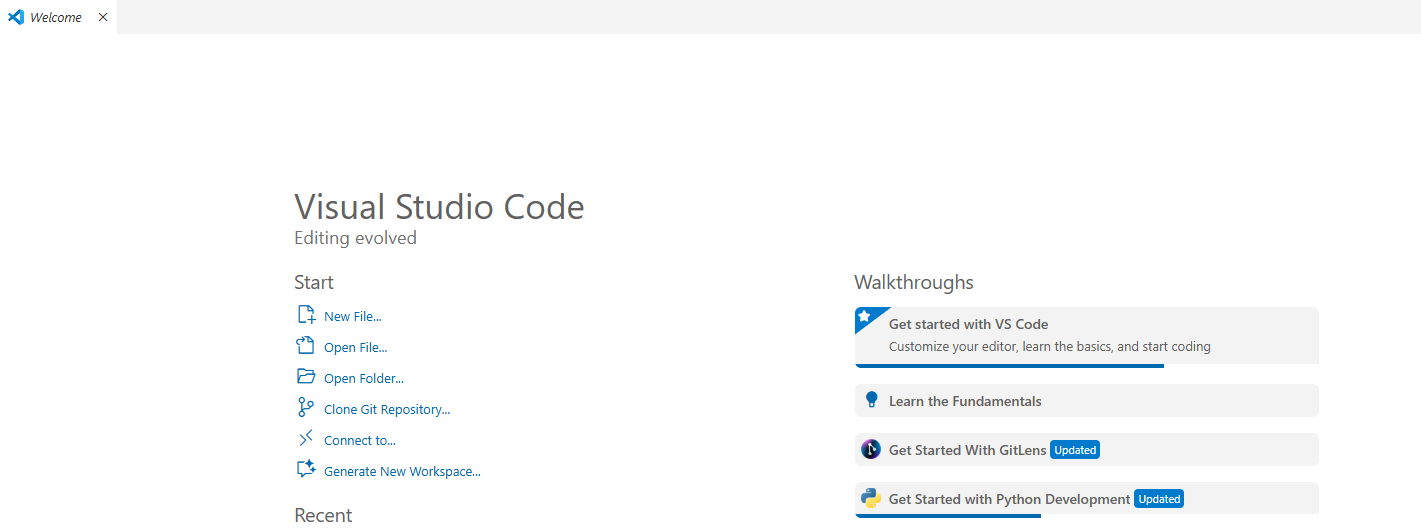
Open VS Code
Look for the blue square icon on your desktop or start menu. When you open VS Code, you should see the Welcome Screen.
Step 8
1
2
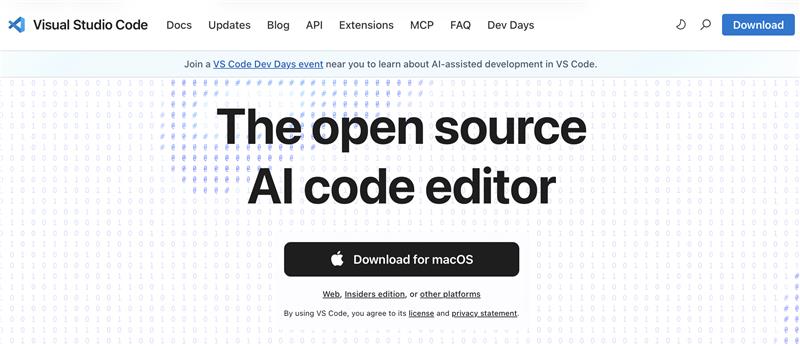
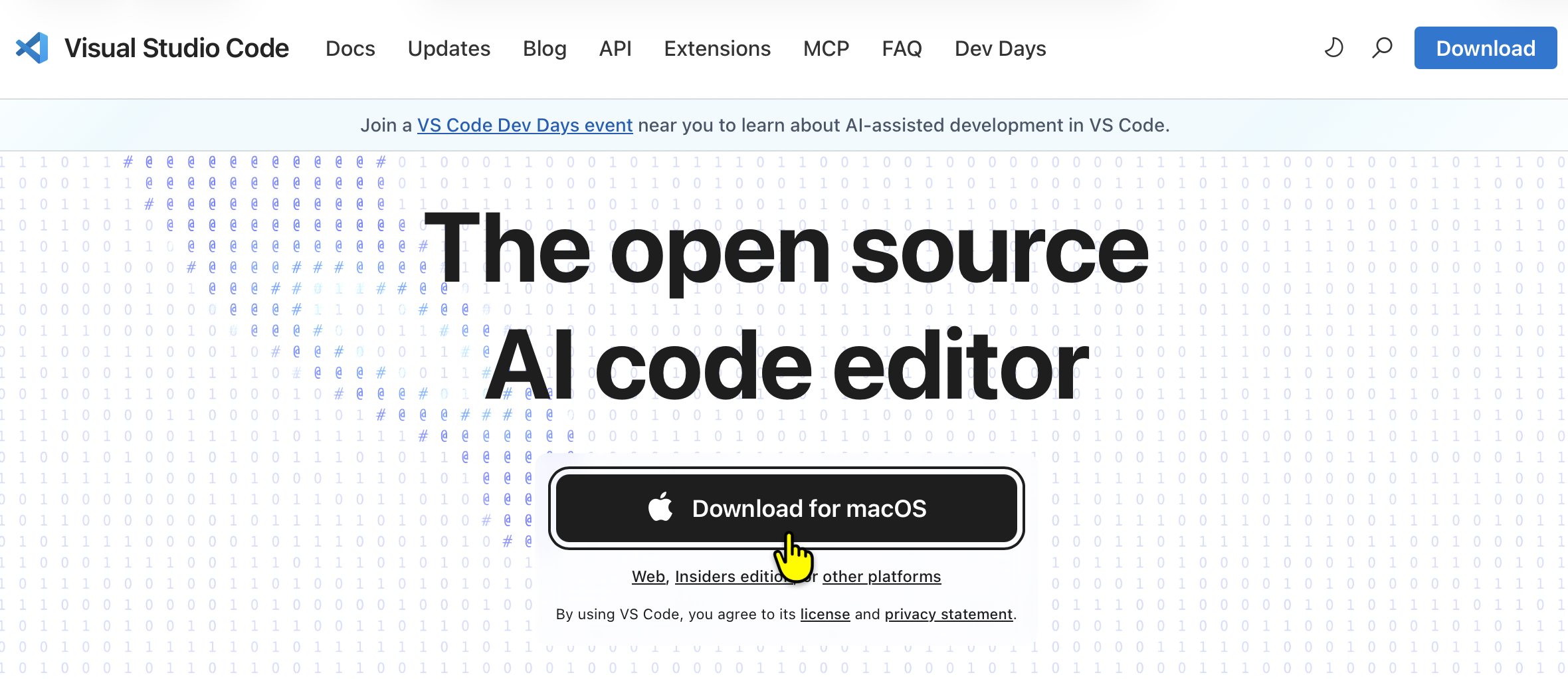
Click download for macOS
On the download page, click Download for macOS to begin the installation.
Step 2
3
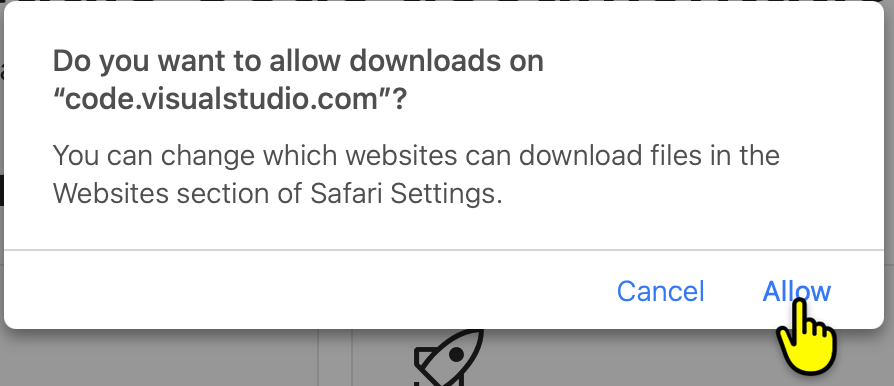
Click Allow
If prompted by macOS, click Allow to proceed with the download.
Step 3
4
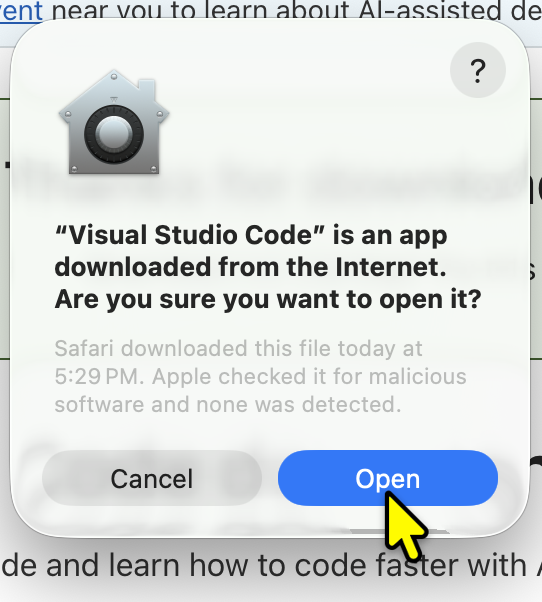
Click Open
Once the download finishes, open the file and when prompted by macOS, click Open to continue.
Step 4
5
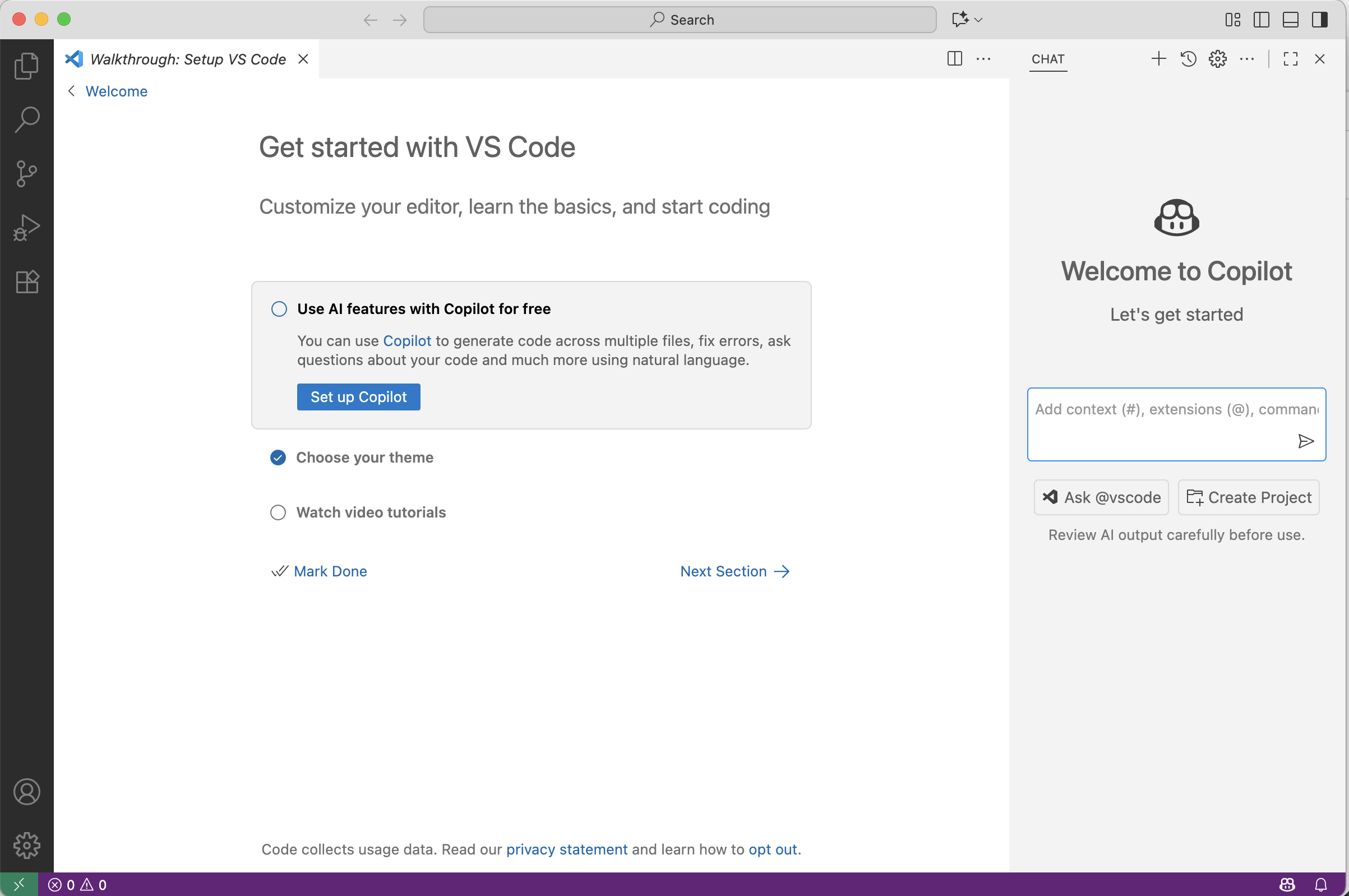
Open Visual Studio Code
After installation, open Visual Studio Code from Applications to see the welcome screen.
Step 5