
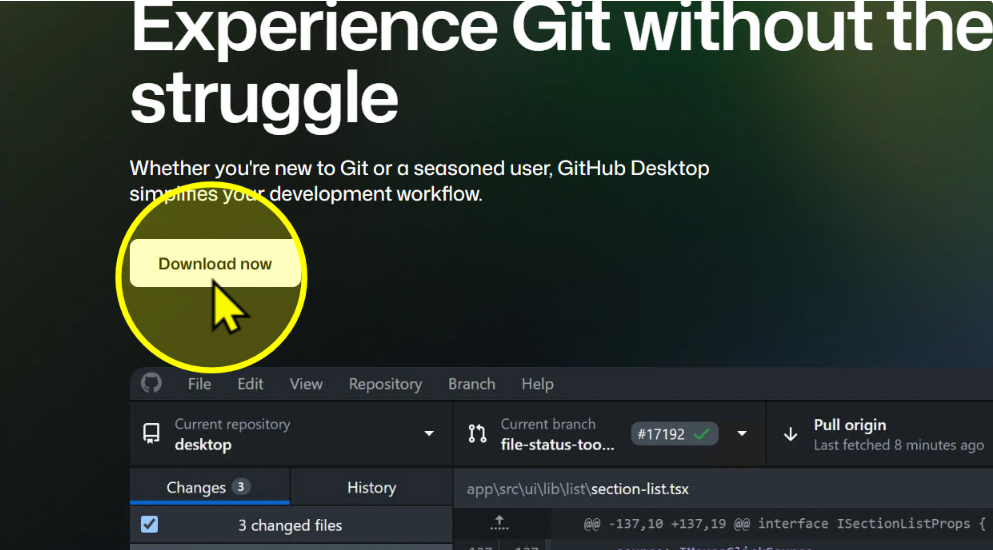
Click 'Download'
On the homepage, click the Download button.
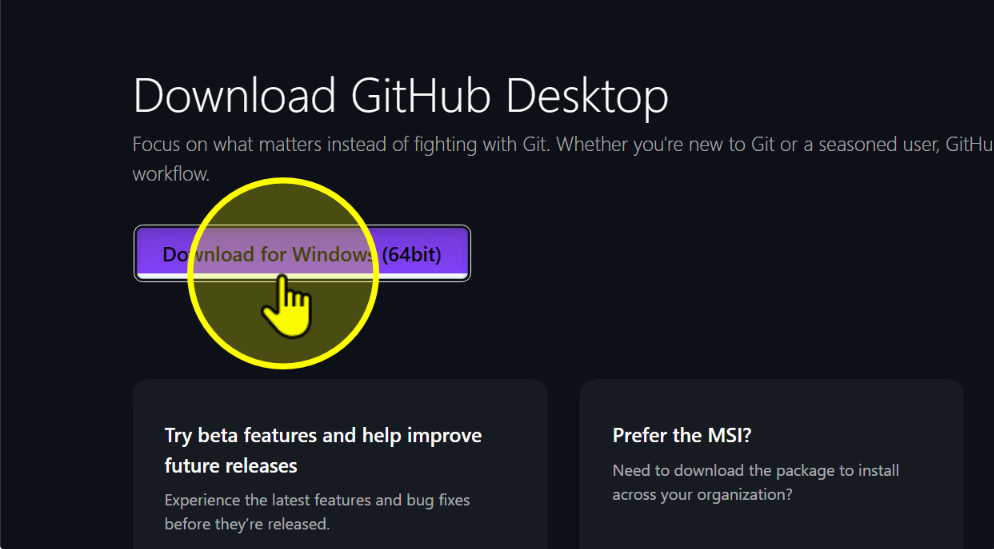
Click 'Download for Windows (64-bit)'
Choose the Download for Windows (64-bit) option.
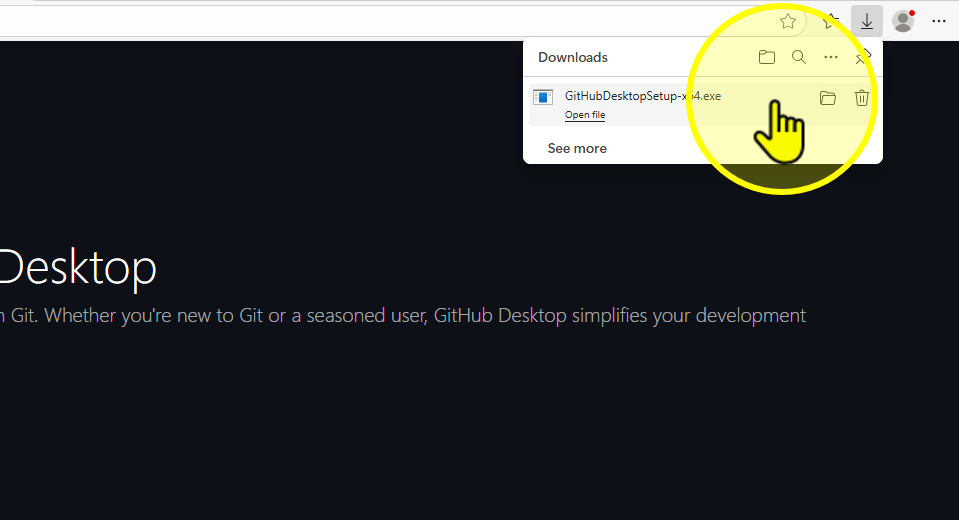
Open the GitHub Desktop installer
Once downloaded, open the installer file.
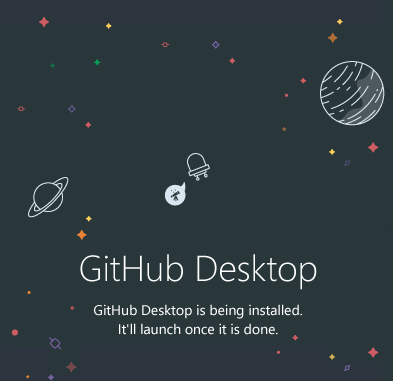
Wait for GitHub Desktop to install
GitHub Desktop will install automatically.
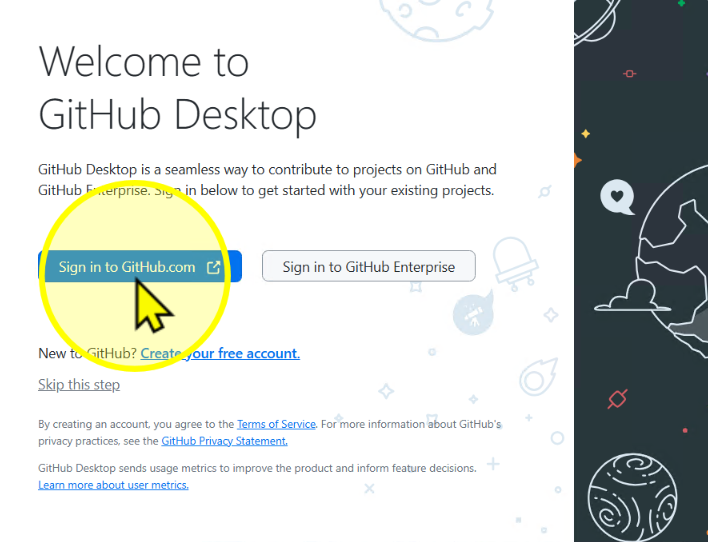
Click 'Sign in to GitHub.com'
When prompted, click Sign in to GitHub.com.
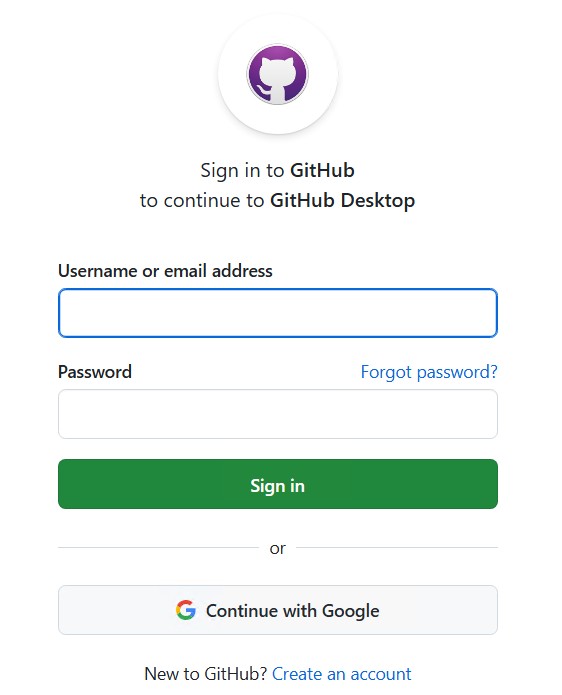
Enter your GitHub login information
Enter your GitHub username/email and password.
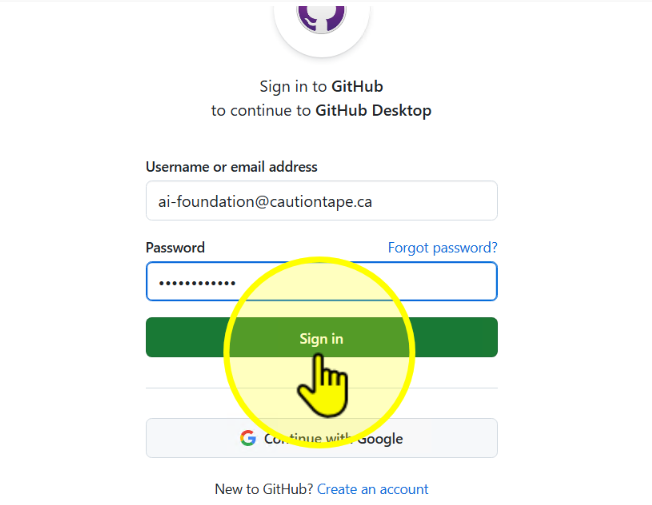
Click 'Sign in'
After entering your credentials, click Sign in.
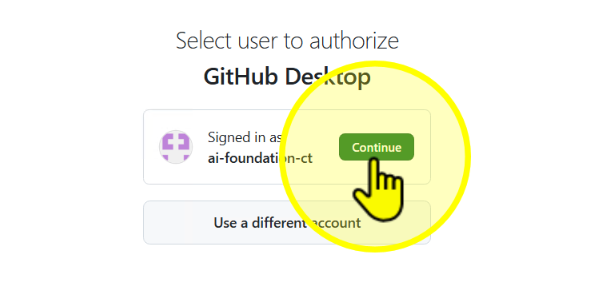
Click 'Continue' to authorize
Authorize GitHub Desktop by clicking Continue.
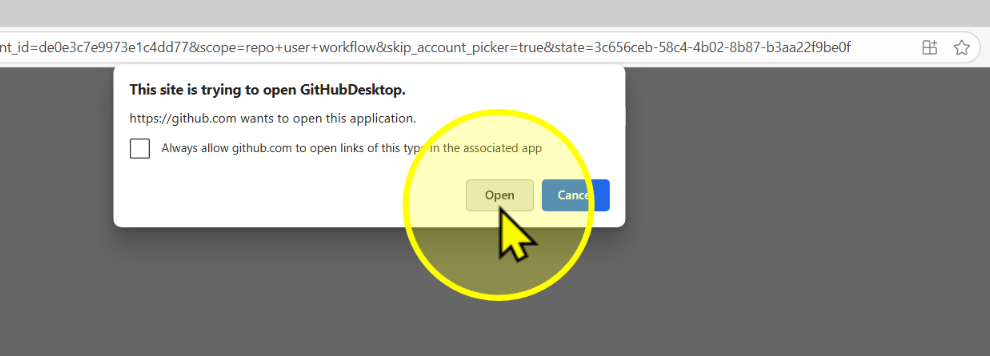
Click 'Open' when prompted
Allow the authorization by clicking Open.
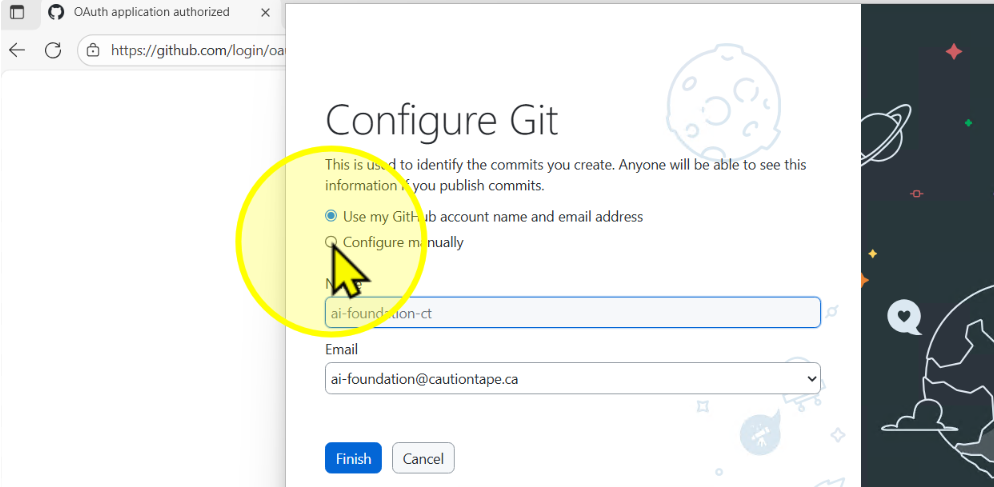
Select 'Configure manually'
Choose Configure manually to set up your Git info.
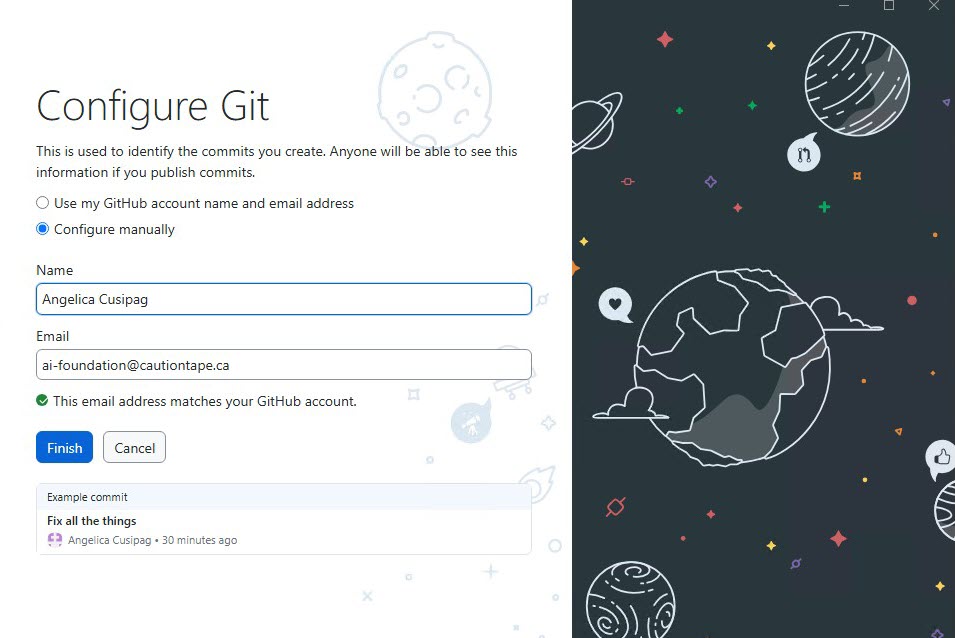
Enter your name and email
Enter your full name and your CautionTape email address.
This info will appear in your Git commits.
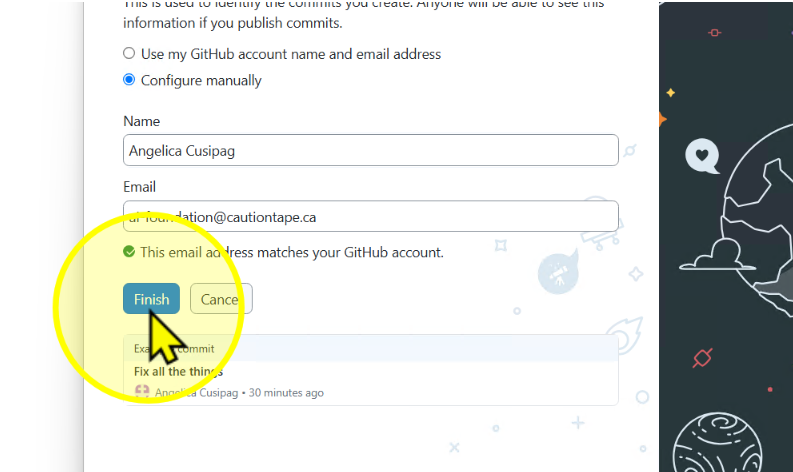
Click 'Finish'
After configuration, click Finish.
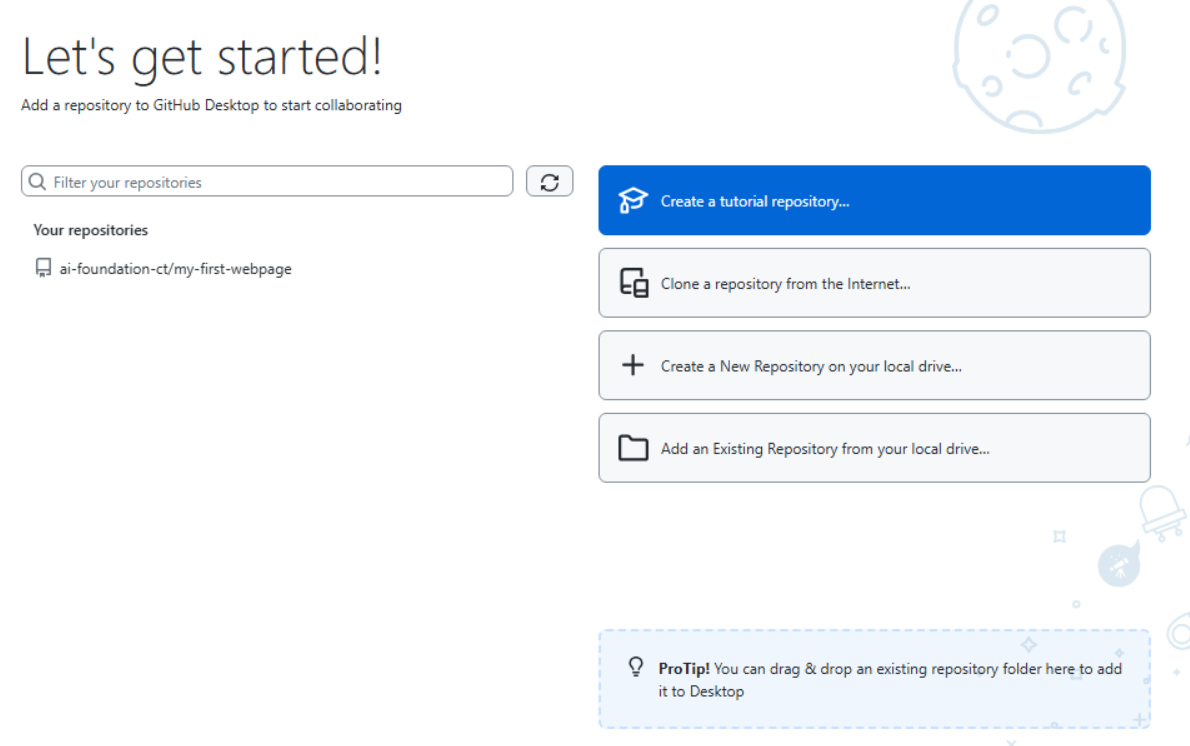
View the initial screen
Once setup is complete, you’ll see the GitHub Desktop start page.
Go to the GitHub Desktop website and click 'Download'
Download Link
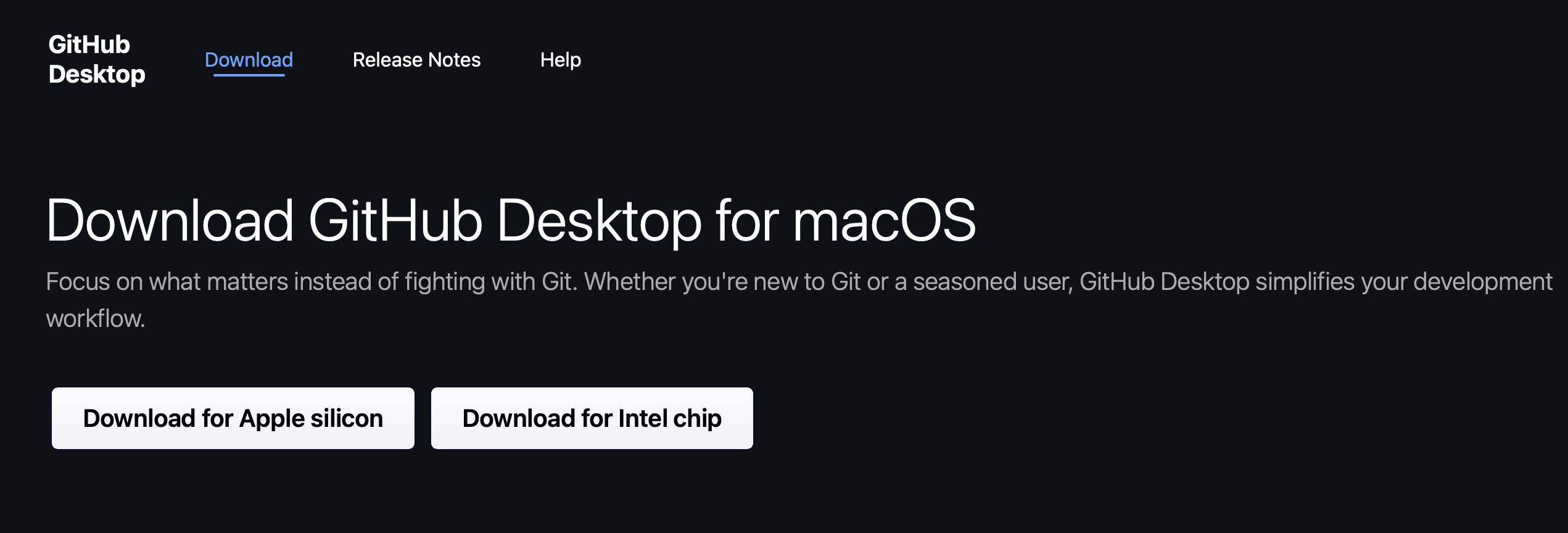
Click 'Download for macOS'
Depending on your macOS chip type, select:
- Download for Apple Silicon
- Download for Intel Chip
How to Check Your Chip Type
Click the Apple menu > About This Mac.
Under Chip, you will see either Apple Silicon (M Series) or Intel.
Click 'Allow'
If prompted by macOS, click Allow to continue the download.

Open the file and click 'Open'
Once downloaded, open the installer file and when prompted, click Open to proceed.

Verification Steps
The following setup steps are identical for all platforms once GitHub Desktop is installed.
⚠️ Any Windows-specific prompts (like UAC) do not appear on macOS.
Click 'Sign in to GitHub.com'
When prompted, click Sign in to GitHub.com.
Enter your GitHub login information
Enter your GitHub username/email and password.
Click 'Sign in'
After entering your credentials, click Sign in.
Click 'Continue' to authorize
Authorize GitHub Desktop by clicking Continue.
Click 'Open' when prompted
Allow the authorization by clicking Open.
Select 'Configure manually'
Choose Configure manually to set up your Git info.
Enter your name and email
Enter your full name and your CautionTape email address.
This info will appear in your Git commits.
Click 'Finish'
After configuration, click Finish.
View the initial screen
Once setup is complete, you’ll see the GitHub Desktop start page.