Connect Claude to MCP Servers
Same Instructions Across Platforms
👉 These steps are identical for Windows, macOS, and Linux because they use Claude’s built-in MCP commands and a JSON file students copy/paste.
1
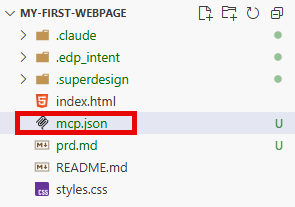
Create the MCP config file (mcp.json)
In project root, create a file named .mcp.json and paste the content below exactly.
mcp.json
{
"mcpServers": {
"ct-devmcp": { "type": "http", "url": "https://devmcp.ct839.com/mcp" },
"context7":    { "type": "http", "url": "https://mcp.context7.com/mcp" },
"vexmcp":    { "type": "http", "url": "https://vexmcp.ct839.com/mcp" }
}
} 
Step 1
2
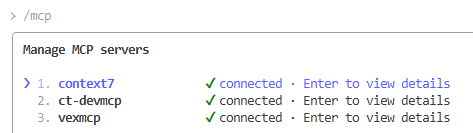
Verify connections using /mcp in chat
- In a new Claude chat message, use this command to show your connected MCPs:
Claude Chat
/mcp You should see the same three servers and their tools listed.
Step 2
MCP Info
Can learn more about the MCPs at https://devmcp.ct839.com and https://vexmcp.ct839.com