Platform Note
The Node.js installation process differs between Windows and macOS.
⚡ On Windows, you must also configure PowerShell’s execution policy before running npm commands.
On macOS, this step is not required.
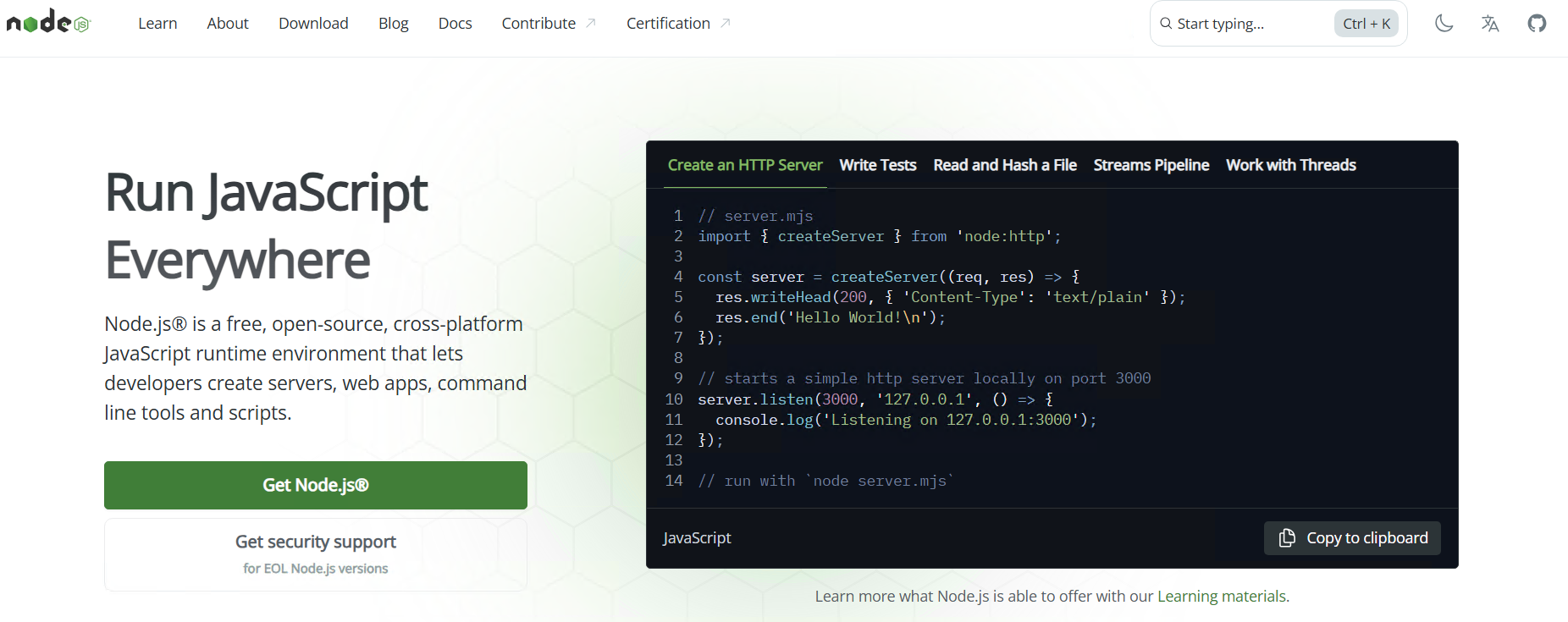
Click 'Get Node.js'
Click the Get Node.js button.
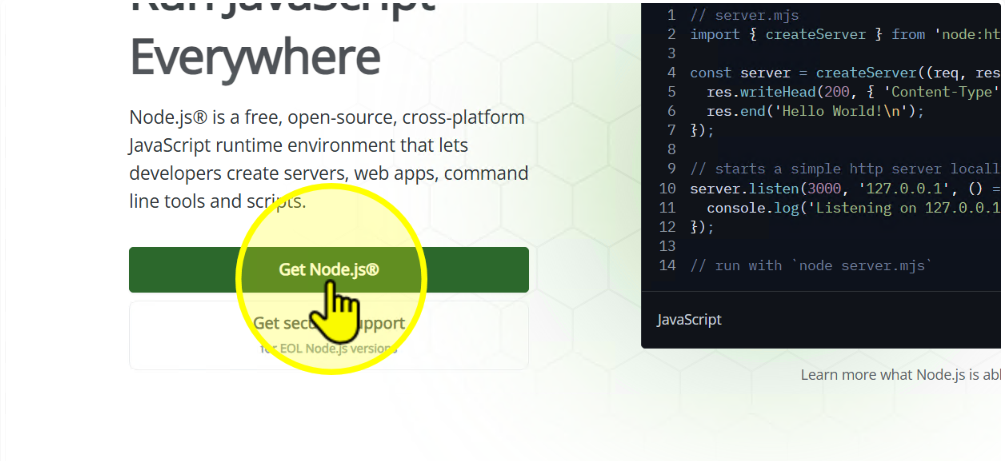
Click 'Windows Installer (.msi)'
Select the Windows Installer (.msi) option to download.
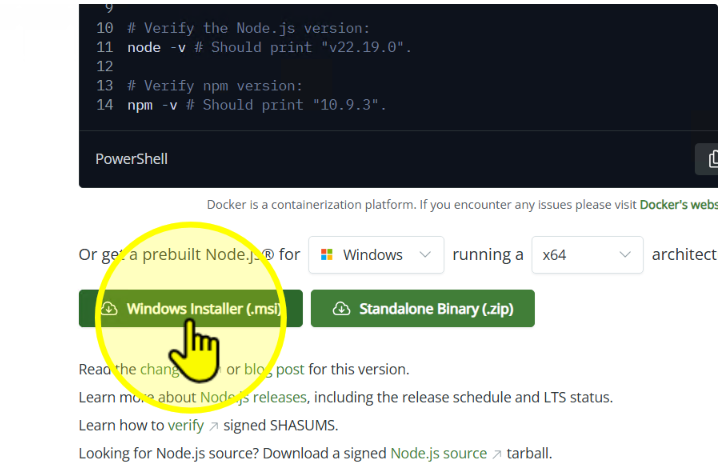
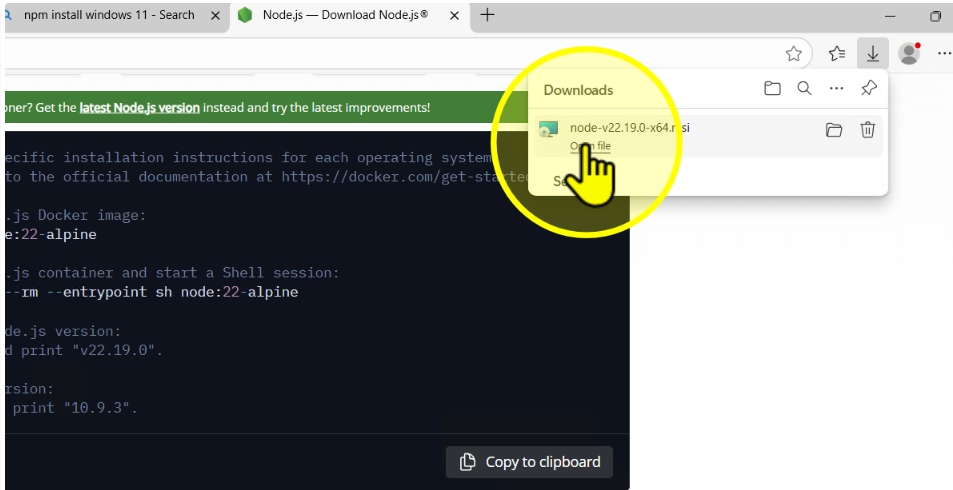
Open the downloaded file
Once the installer finishes downloading, open the file.
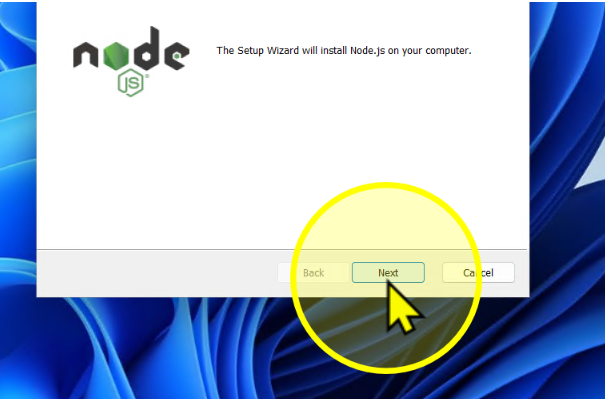
Click 'Next'
In the installer, click Next.
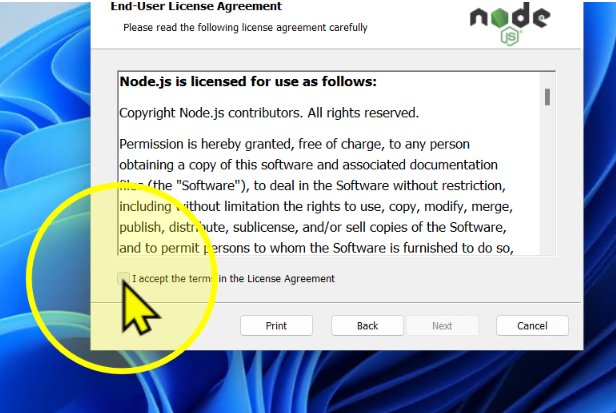
Accept the license agreement
Select I accept the terms in the License Agreement and click Next.
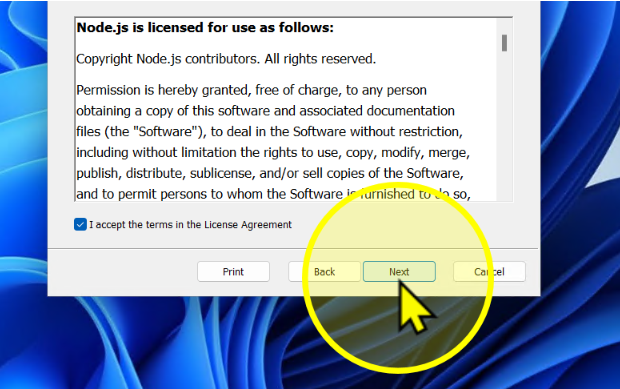
Click 'Next' until ready to install
Keep clicking Next through the setup screens until you reach the install step.
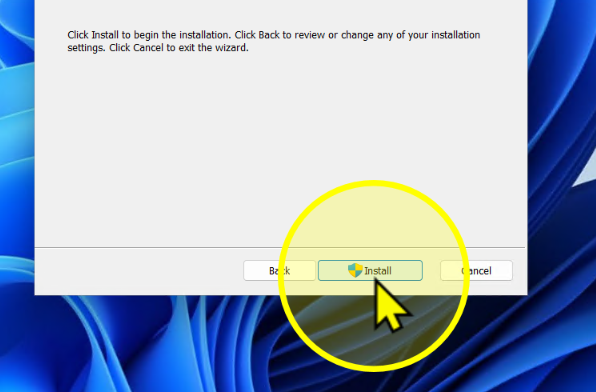
Click 'Install'
Click Install to begin installation.
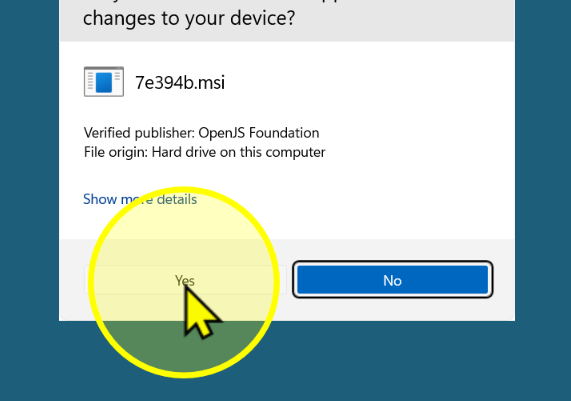
Click 'Yes' if prompted
If you see a User Account Control prompt, click Yes.
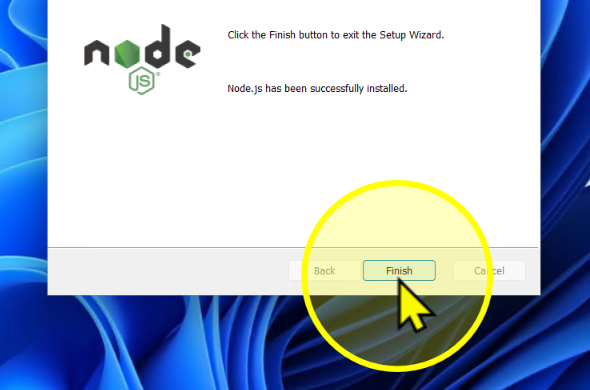
Click 'Finish'
When the installation completes, click Finish.
Verification Steps
The following verification steps are identical for all platforms once Node.js is installed,
except for an additional PowerShell configuration step required on Windows.
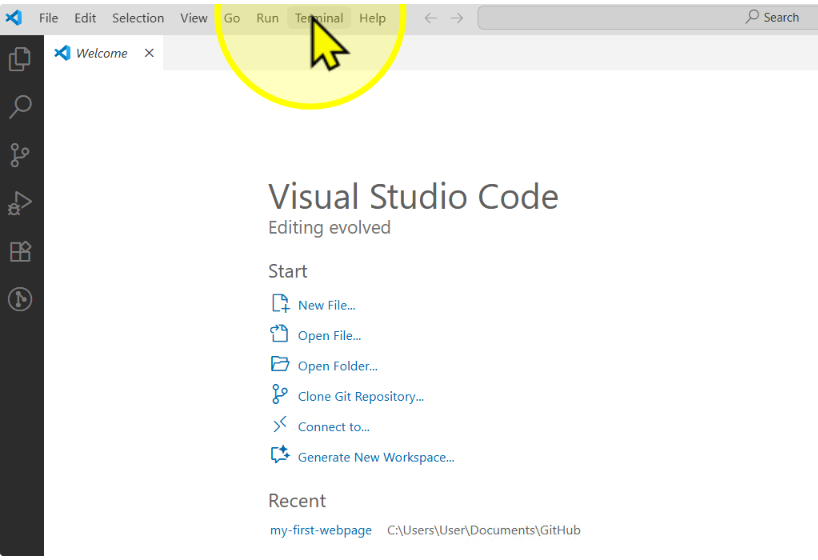
Open VS Code and click 'Terminal'
Close and re-open Visual Studio Code, click the Terminal menu at the top.
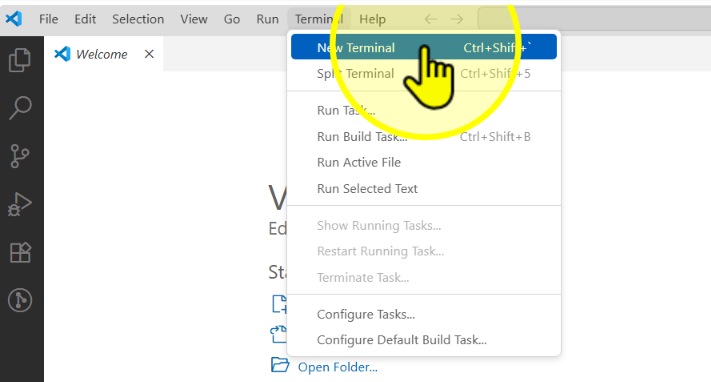
Select 'New Terminal'
From the dropdown, select New Terminal.
Set PowerShell Execution Policy (Windows-only)
In the new terminal, type the following command and press Enter:
Set-ExecutionPolicy -ExecutionPolicy RemoteSigned -Scope CurrentUser This allows npm scripts to run without policy errors.

Check Node.js version
Type the following command and press Enter:
node -v You should see a version number, for example: v20.xx.x.

Check npm version
Type the following command and press Enter:
npm -v You should see a version number, for example: 10.x.x.
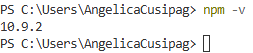
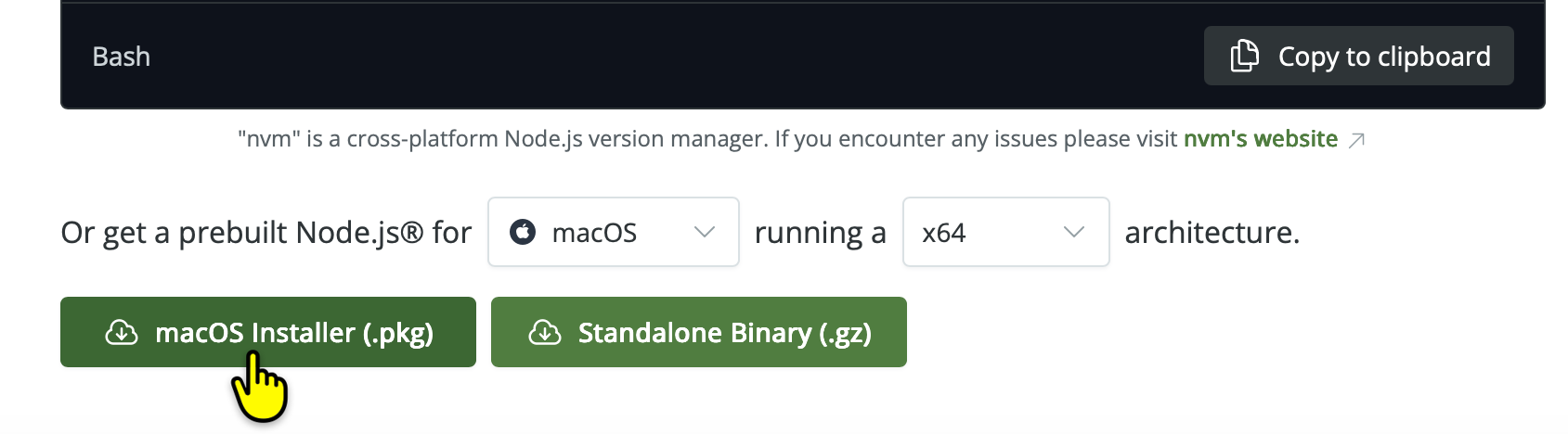
Click 'macOS Installer (.pkg)'
Select the macOS Installer (.pkg) to download.
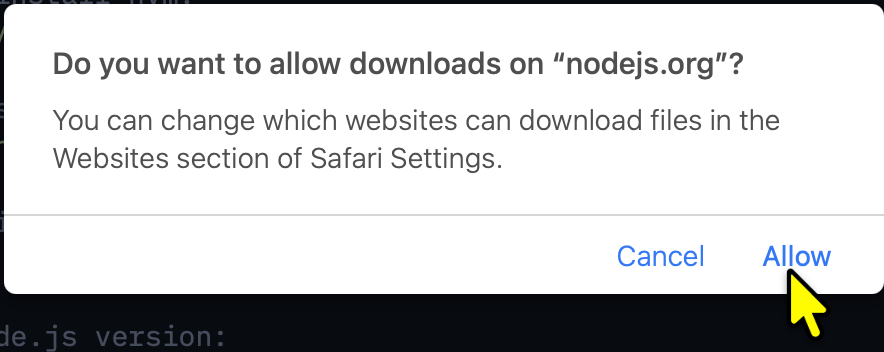
Click 'Allow'
If prompted by macOS, click Allow to proceed with the download.
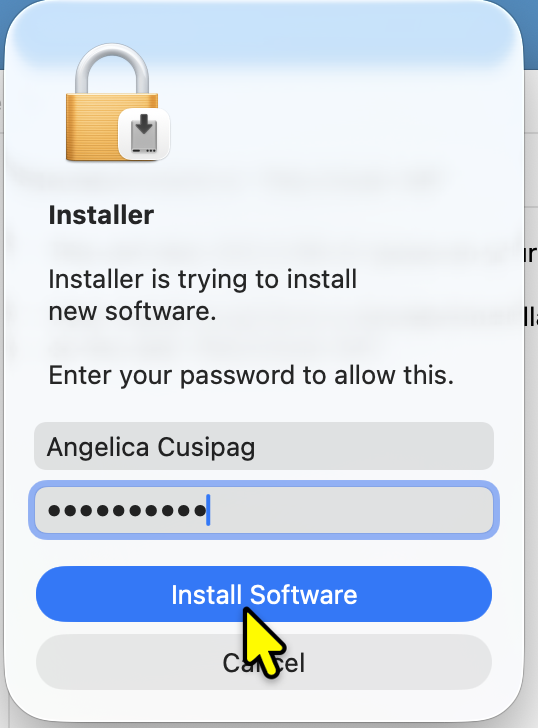
Enter your password if prompted
If macOS asks for permission to install, enter your administrator password.
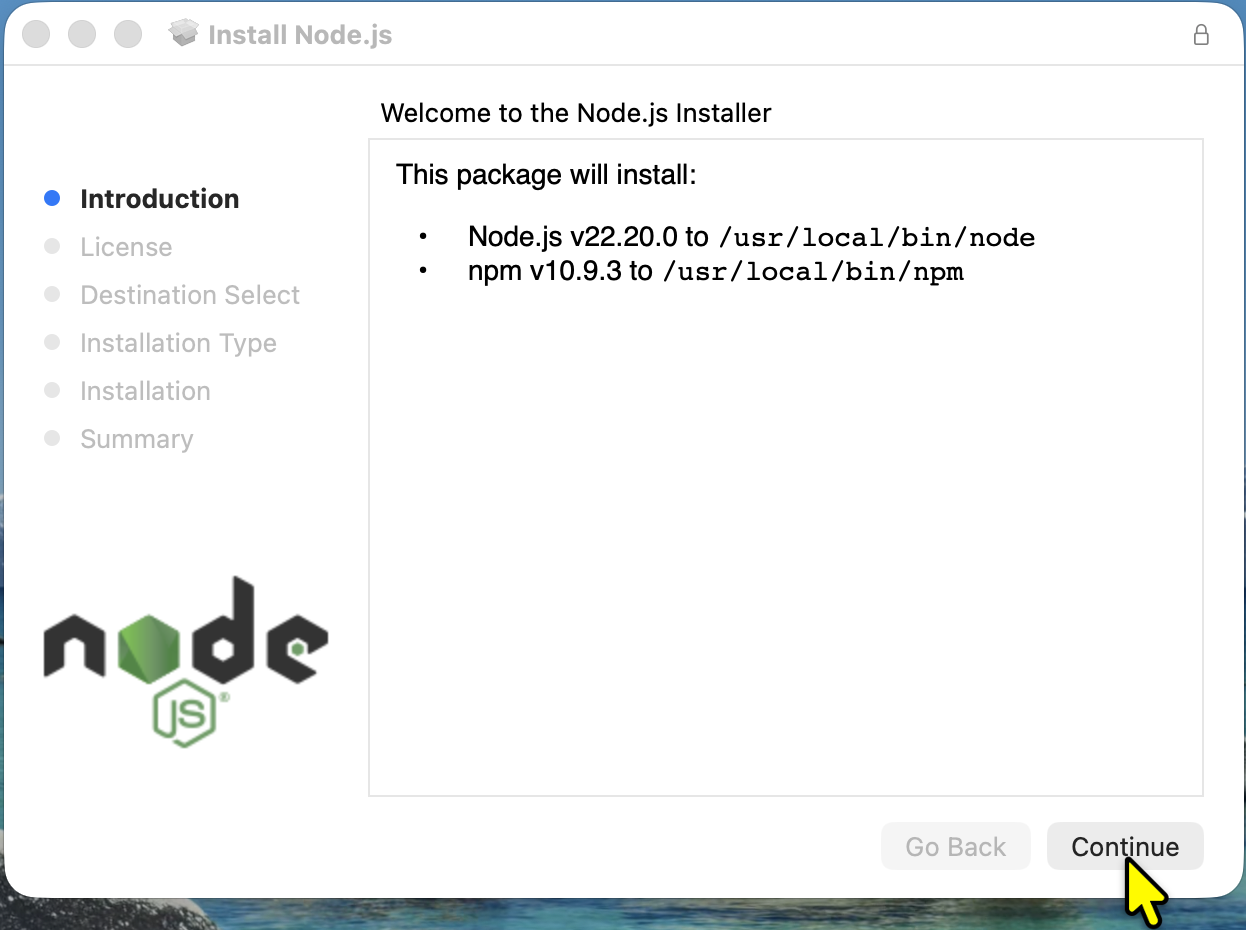
Click 'Continue'
Proceed through the installer by clicking Continue.
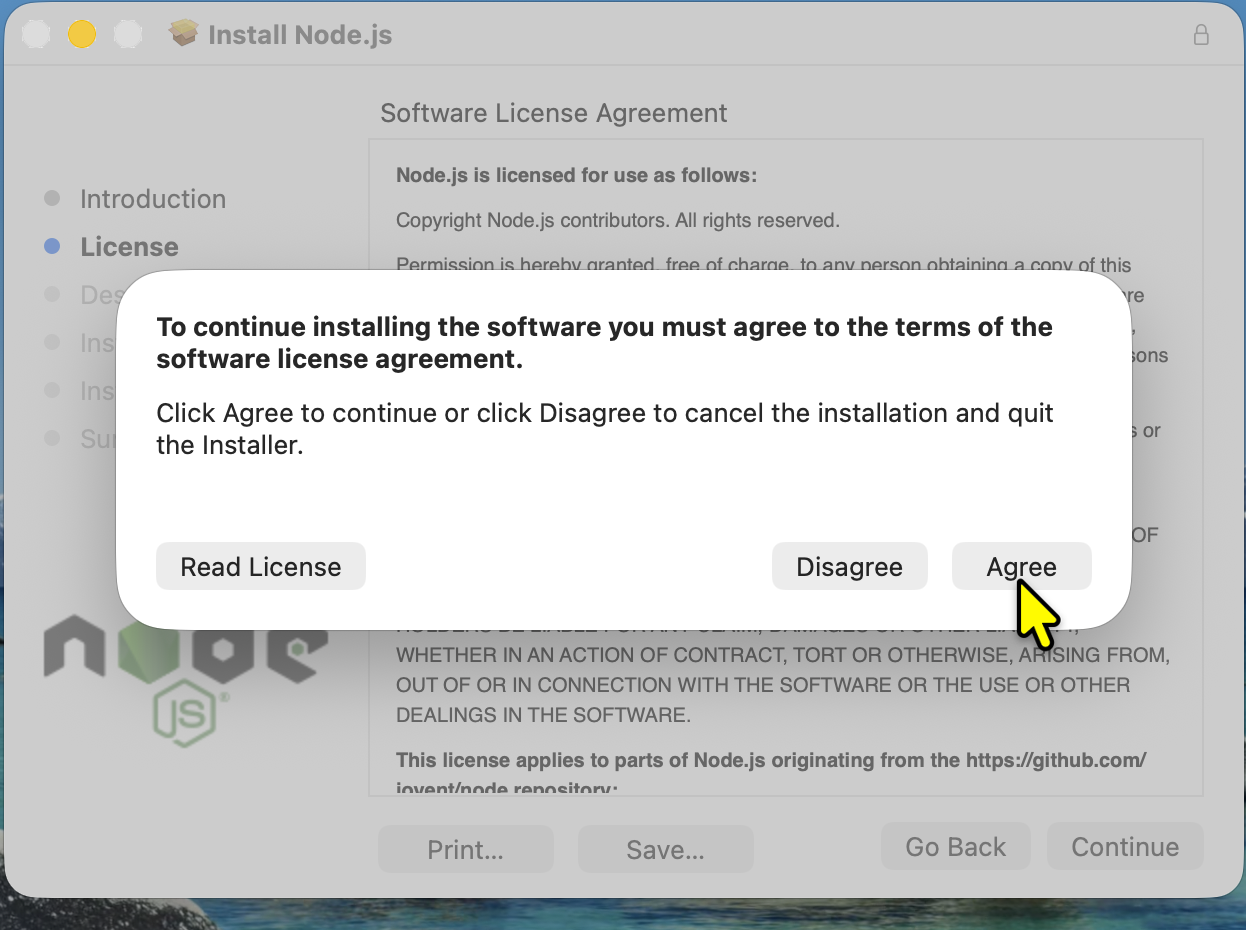
Click 'Agree'
Accept the license agreement by clicking Agree.
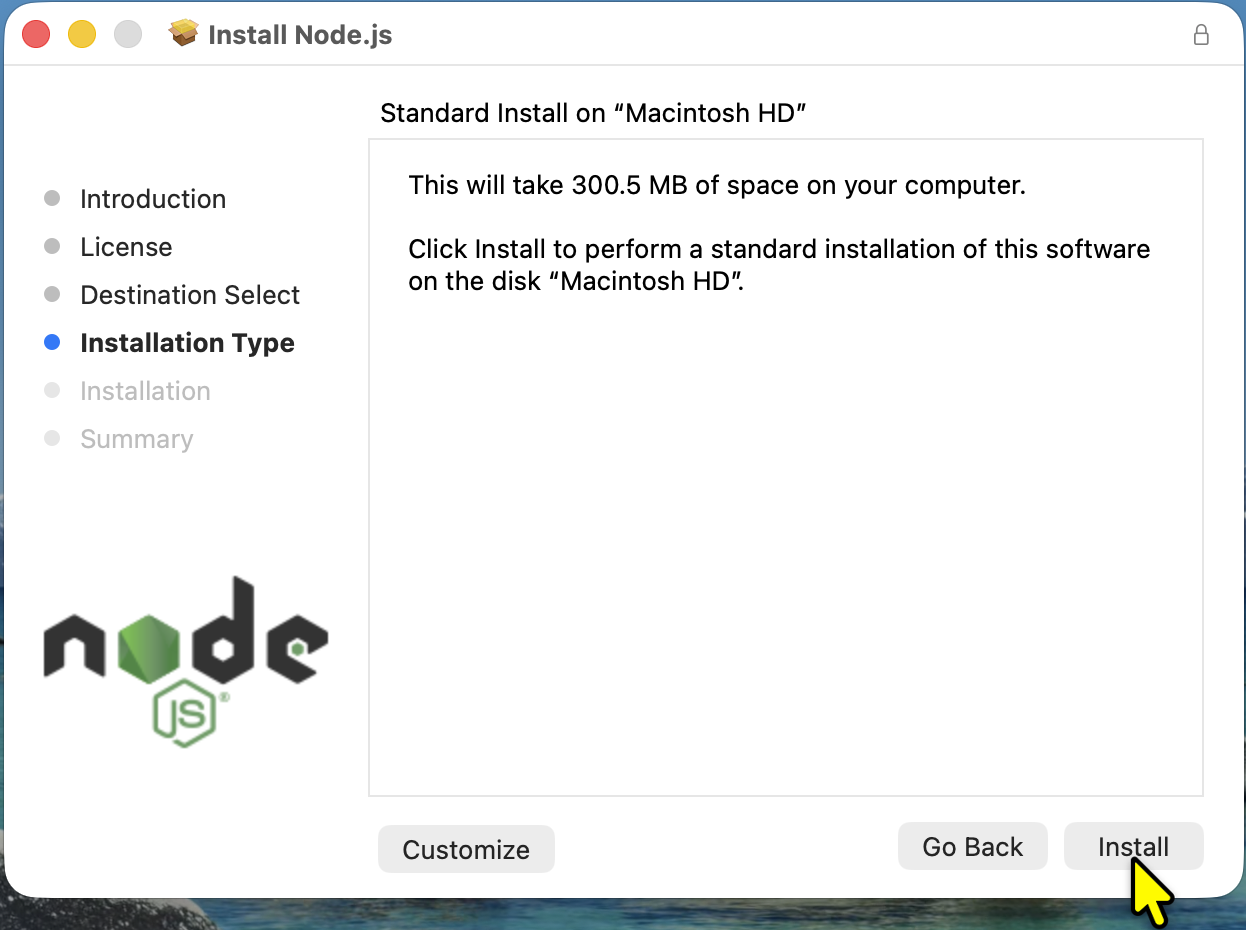
Click 'Install'
Click Install to begin installing Node.js and npm.
Verification Steps
The following verification steps are identical for all platforms once Node.js is installed.
⚠️ The PowerShell execution policy step only applies to Windows.
Open VS Code and click 'Terminal'
Close and re-open Visual Studio Code, click the Terminal menu at the top.
Select 'New Terminal'
From the dropdown, select New Terminal.
Check Node.js version
Type the following command and press Enter:
node -v You should see a version number, for example: v20.xx.x.
Check npm version
Type the following command and press Enter:
npm -v You should see a version number, for example: 10.x.x.